
Key concepts
Tollgate is small on purpose, but a few things surprise people on a fresh Jira site, chiefly a blank Portfolio. This page gives you the shape of the app, so nothing on screen is a mystery. Each topic links to a deeper page.
Two surfaces, project and portfolio
Section titled “Two surfaces, project and portfolio”Tollgate shows up in two places.
- The project view is a Tollgate tab on an individual project. One project, one investment.
- The portfolio view is a site-wide Tollgate Portfolio page under Apps. One row per investment.
The work happens in the project view. There you charter the investment, scope it, track its risks and decisions, and set its status. The portfolio view reads that data back across every project, side by side, grouped by theme. You will spend most of your time in the project view. You can present from either.
Two modes: Standard and Advanced
Section titled “Two modes: Standard and Advanced”Every project runs in one of two modes.
- Standard is a project status report. The project page opens on a dashboard headed Project Performance. Below it sit the work packages, then the risks, decisions and changes registers. Standard has no business case, gates, sponsor approvals, Control Centre, confidence ratings or realisation. Cost compares against the work packages’ planned budgets. The plan is the baseline, so nothing has to be approved first. A Standard project is either Active or Closed.
- Advanced is the full process: business case, approvals, stages, confidence and realisation. The rest of this page describes Advanced.
From v6.7.0, new projects start in Standard. A Jira admin can change the default for new projects under Default mode on the Tollgate Portfolio page. A project that already has a business case stays in Advanced. A project’s lead, or an editor they nominate, can switch the project between modes in Project settings. Moving a project to Advanced approves nothing. It lands on the business case, which the sponsor approves like any other.
The project view (the Tollgate tab)
Section titled “The project view (the Tollgate tab)”Open a software or business project and find Tollgate in the left sidebar. It stays out of Jira Service Management and Jira Product Discovery on purpose. Tollgate governs bounded investments, and those project types don’t suit it.
The Tollgate tab opens on the Dashboard, a read-only summary that stays at the top. The registers sit as a row of cards beneath it:
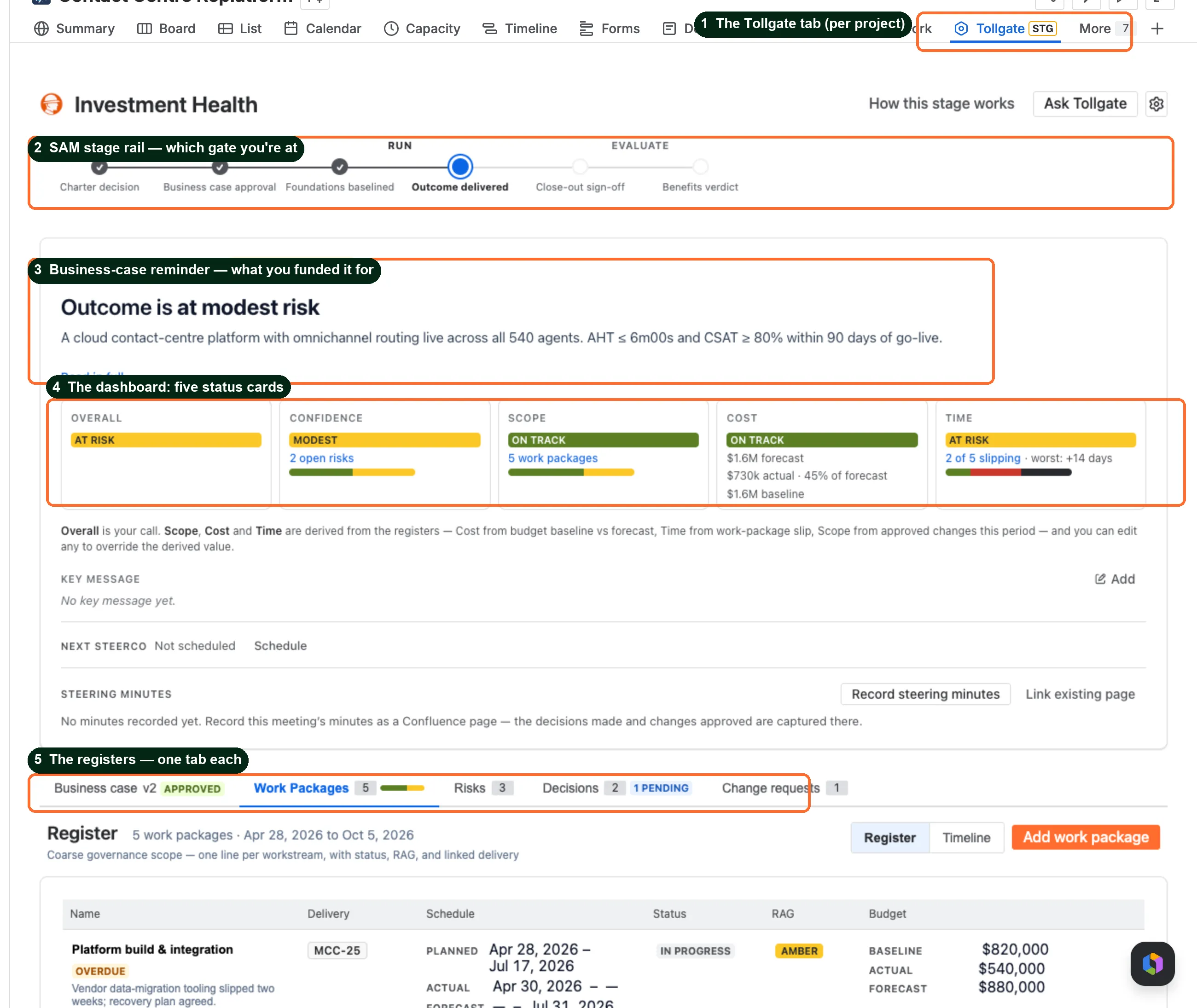
- The Tollgate tab holds the whole per-project surface.
- The stage rail shows which stage the investment is at (Advanced mode).
- The business-case reminder keeps in view what you funded this for.
- The dashboard: five status cards is the read-only picture you present from.
- The registers have one card each, listed below.
| Register | What it holds |
|---|---|
| Business case | The investment thesis (problem, outcome, expected return), plus the decision authority and steering committee. Where an investment earns its name. |
| Work Packages | Business-level slices of scope, each with an owner, dates and a budget. Scope, cost and time all come from here. |
| Risks & opportunities | A register of risks, opportunities and materialised items. |
| Decisions | An append-only decision log. |
| Changes | Change requests, with an approval workflow. |
| Close-out | The close-out report, the business case’s bookend, recorded when the investment ends. |
| Realisation | The benefits-measurement window after delivery, through to the realisation verdict. |
Work packages carry the scope and the budget
Section titled “Work packages carry the scope and the budget”This one catches people out. You set scope, cost and time in work packages, and you need at least one.
A work package is a business-level slice, such as Checkout UX overhaul or Data migration. It is not a Jira ticket. Each one has a budget (baseline / forecast / actual) and start and end dates. The dashboard computes its Cost, Schedule and Scope cards straight from your work packages. With none, those cards have nothing to compute from and stay blank. Add one and they light up.
See Add work packages.
Risks, Decisions and Changes are registers in their own right
Section titled “Risks, Decisions and Changes are registers in their own right”Each of these three is a first-class register with its own card and workflow, not a note on the dashboard.
- Risks form a live register on the risk / opportunity / materialised model. Each carries an impact, a likelihood and a treatment.
- Decisions form an append-only log. You correct a taken decision with a note, never by editing it away.
- Changes are change requests that move through an approval workflow (raised, then adjudicated). Scope changes are governed, never silent.
Each register’s card carries its live edge: counts, plus attention chips such as materialised risks or changes awaiting a call. The dashboard’s Control Centre queues anything waiting on a person. The registers hold the substance.
The dashboard
Section titled “The dashboard”“The dashboard” is the Dashboard summary at the top of every project’s Tollgate tab. It is read-only: it reflects what you enter on the registers and recomposes as they change. You never edit its numbers directly. The two exceptions are Overall and Confidence, the cards you set by hand. It is presentation-grade, so you present from it live rather than exporting a deck.
The Tollgate Portfolio page repeats the idea at portfolio level: the same governance signals across the whole set of investments, rolled up by theme.
For the card-by-card walkthrough, see Read the dashboard.
The portfolio view (and why it starts blank)
Section titled “The portfolio view (and why it starts blank)”The Tollgate Portfolio page (Apps → Tollgate Portfolio) rolls every project’s governance health into one investments table:
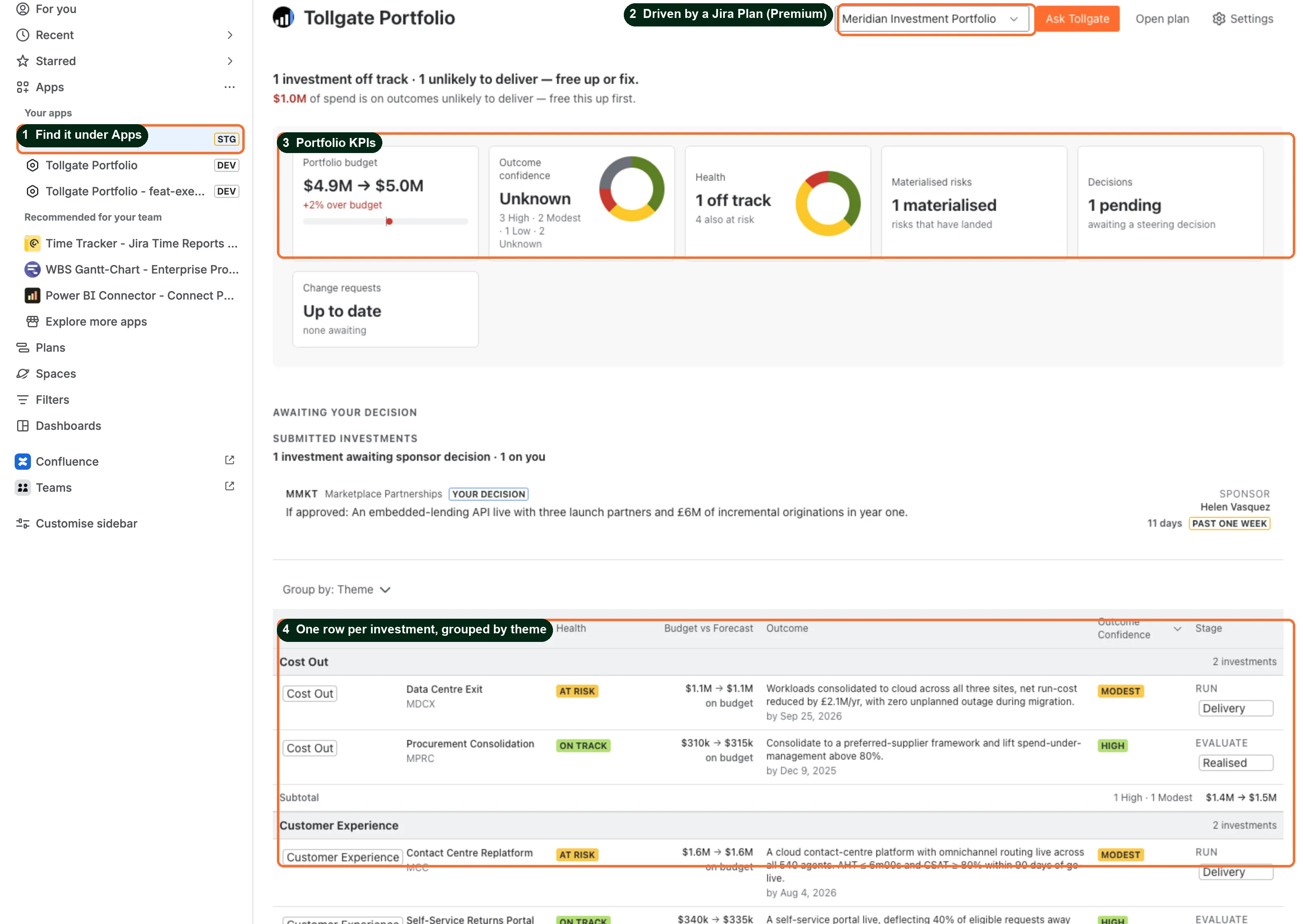
- Find it under Apps. It is a site-level page, not a project tab.
- A Jira Plan (Premium) drives it. Pick the Plan whose projects you want to roll up.
- Portfolio KPIs show total budget, outcome-confidence spread, health, materialised risks and pending decisions across the set.
- One row per investment, grouped by theme, shows its health, budget-vs-forecast, outcome, confidence and stage.
This part surprises people on a fresh site:
Who can see what (access defaults)
Section titled “Who can see what (access defaults)”Tollgate is an above-the-line surface: governance data your delivery teams don’t need to see. Access is narrow by default, and you widen it explicitly.
The portfolio view defaults to Jira admins only. To widen access, set a governance group (a named Jira group) under Settings → Who can see this portfolio on the Portfolio page. That group and the admins see the portfolio. The same group gates every project’s Tollgate tab. See Restrict access with governance groups.
A project’s Tollgate tab defaults to that project’s own governance people, plus Jira project admins. That means:
- the project lead
- the named seats (sponsor, PM, customer and supplier rep)
- the steering committee
To grant one person edit access on a single project, the project lead nominates them as an editor. Open the project’s Tollgate tab, open Settings (the gear), and add them under Who can edit. Only the project lead sees the add and remove controls.
For every role, permission and Jira scope, see Roles, permissions & scopes.
What’s next
Section titled “What’s next”You have the map. Now build something real on it.
- Your first investment: thesis to gate is the flagship tutorial, end to end.
- Glossary defines every term in one place.